
Welcome, Glastonbury Property Owners
This website is an independent, interactive information resource and service provider for Glastonbury landowners.
Updated
Saturday, October 31, 2026
A Simple Guide to Getting Started
How to Create a Sunwest GLA Account and Make a Payment
Setting up your Sunwest GLA payment account makes it easier to pay Association charges and keep track of your transactions. This illustrated guide walks you through choosing the GLA account, registering, adding a payment method, and reviewing and submitting your payment. Before you begin, follow the instructions below under "Locate Your GLA Account Number" to find your three-digit account number using the lookup feature, and have your preferred email address ready. You do not need to be a Sunwest Bank customer, and creating a payment account is free. Before submitting a payment, check the amount, convenience fee, and selected payment method, then save your confirmation. Once registered, you can review payment history, manage payment methods and reminders, and schedule future payments. Review any scheduled payment when your new assessment statement arrives to ensure its amount and date still match your obligations.
Follow these steps to create your Sunwest GLA payment account and make a payment. Account setup generally takes 5 to 10 minutes. Have your three-digit GLA account number and preferred email address ready.
1. Choose the GLA Account
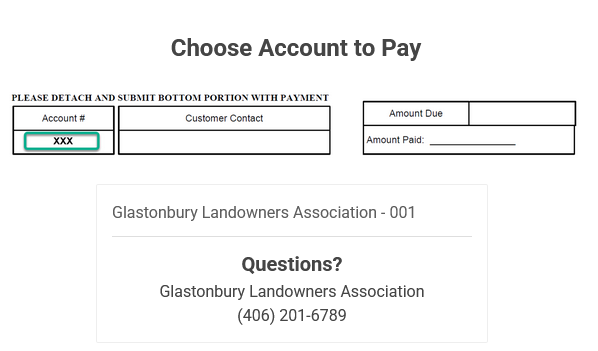
Sunwest provides a free GLA payment account. You do not need to be a Sunwest customer or have a checking account with Sunwest.
Your account lets you make payments, view payment history, update payment methods, schedule payments, and receive email or text reminders.
On the account selection screen, click or tap "Glastonbury Landowners Association - 001" to continue.
Locate Your GLA Account Number
Your three-digit account number appears in the lower-left corner of the tear-off portion of your assessment statement.
You can also find it by searching for your last name or parcel number below.
Results: Owner's name, parcel and 3-digit account number
2. Find Your Account
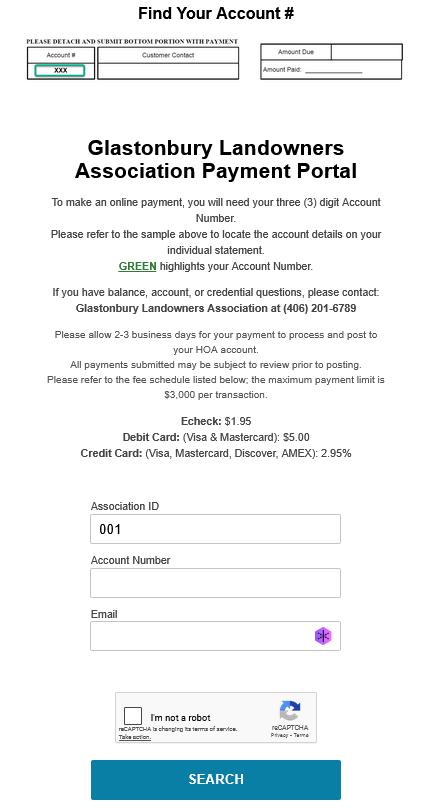
- Leave the Association ID as 001.
- Enter your three-digit GLA account number.
- Enter your primary email address.
- Check "I'm not a robot" and complete any verification prompts.
- Click or tap "Search".
If you use multiple email addresses, keep a record of the one you enter here. Sunwest uses your email address and GLA account number to identify your account.
3. Register or Log In
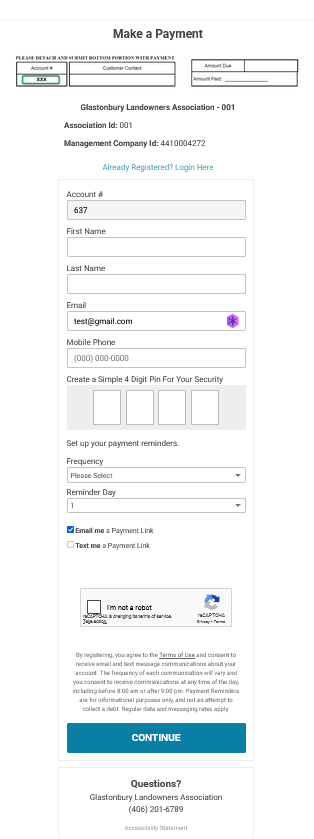
If you have already registered, select "Already Registered? Log in here."
If this is your first visit:
- Enter your first and last names.
- Add your mobile phone number if you want text reminders.
- Create a four-digit PIN. Avoid easily guessed numbers, such as your birth year or a simple sequence.
- Choose your reminder preferences.
- Check "I'm not a robot" and complete any verification prompts.
- Select "Continue".
Set Payment Reminders
For an annual reminder around the time assessment statements are generally mailed, select "Annual" and choose January 15 as the reminder date.
Select email, text, or both. The reminder includes a link to your account.
A reminder is not a payment. Check your statement for the amount due and payment deadline.
4. Enter Your Payment Amount
Enter the amount you want credited to your GLA account. Then select a payment method:
- "+Debit Card"
- "+Credit Card"
- "+Manual Bank" for an ACH e-check from your checking account
Review the processing fee for your selected method before confirming payment.
Avoid selecting "Make Recurring" unless you have confirmed that its payment schedule matches your GLA payment deadlines.
5. Add Your Payment Method
On the "Method of Payment" screen, enter the requested card or bank account information directly in the Sunwest portal.
You may save the payment method to your Sunwest GLA account for future use. When finished, select "Submit Payment Method".
For card payments, enter the security code requested by the portal. You may also select a different payment method before proceeding.
Select "Review Payment".
6. Review and Submit Your Payment
The "Confirm Payment" screen displays:
- The amount credited to the GLA
- The convenience fee
- The total charge
- Your selected payment method
Check these details carefully. When everything is correct, select "Submit Payment".
The next screen confirms your payment, and a confirmation is also sent to your email address. Keep a copy for your records.
7. Explore Your Account
After payment, use "My Portal" to access your account or "My Payment History" to review previous payments.
Your account provides options to:
- Make payments and review payment history.
- Update payment methods.
- Change your name and email address.
- Reset your PIN.
- Manage reminders.
- Switch the portal language to Spanish.
Bookmark the portal so you can find it easily next time.
Review Automatic Payments Each Year
If you set up a future automatic payment, review its amount and date when your next assessment statement arrives. An assessment increase can leave a scheduled payment short of the amount due.
Your Neighbors Would Love to Hear From You
Have a question, a helpful tip, or a different point of view? Join the conversation. You don't need to write an essay - a sentence or two is a great start.
Not sure what to say? Try one of these:
- What did you find helpful on this page?
- What would you like to know more about?
- What experience or local tip could you share with a neighbor?
Different views are welcome. Please keep the conversation respectful and focused on ideas, so everyone feels comfortable joining in.
Join in using the comment box below. We look forward to hearing from you!
No registration needed. Questions and short comments are welcome!

New here? Here's how commenting works.
- You can leave a comment as a guest. Guest comments may take about a day to appear while they are reviewed.
- Registration is optional. Click "Login" in the comments area to get started. Registered users' comments appear immediately and can be edited later.
- Click "Reply" to respond to a neighbor. Use the up or down arrows to vote on a comment.
- Comments are moderated, and spam is removed.
Was this page helpful?
|
Search our site |
The opinions and ideas expressed on this site are presented for community discussion and involvement. They may or may not align with the views of the current, ever-changing GLA Board.
By using this website you are agreeing to our Terms of Use.
Copyright © 2025-2026 Brockett Designs All rights reserved
Template courtesy of W3layouts. Built by Tim Brockett (Brockett Designs) with assistance from Claudette Dirkers.
This site is not affiliated with the Glastonbury Landowner's Association